Guide: join your business with the activation code
Eight characters from the office, one tap on Join, and the business's appointments are on the phone. What is sent, what stays on the device and how a business gets the office.
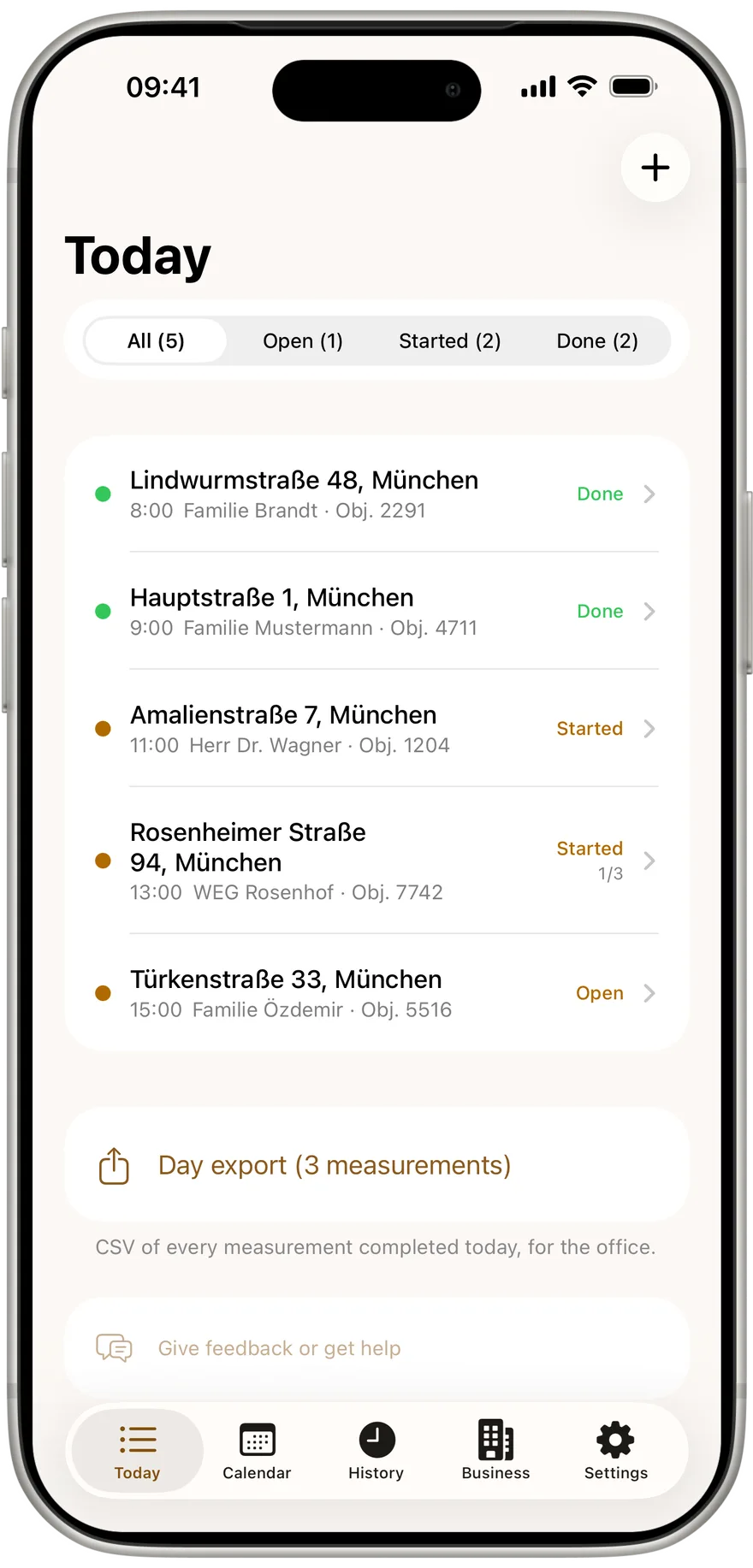
Working alone, a chimney sweep only needs the app. As soon as two or more people are out in the field, the work in between starts: handing out addresses, collecting protocols, chasing a missing measurement. That is what the Kehrwerk office is for. The phone is connected with an activation code, and from then on appointments come to the phone and finished measurements go to the office, without anyone sending anything.
How a business gets the office
You book the office yourself at kehrwerk.com under "For businesses", with no call, no quote and no setup fee. The price is on the page:
- €39 a month for the business, plus €15 per seat, net plus VAT
- from two seats, everyone on the team takes one, you included
- 14 days free, then cancel monthly
- invoice to the business with your VAT ID
A business with three people in the field pays €39 plus three times €15, €84 net a month. Anyone working alone pays nothing and uses the app with every on device feature, free for good. A seat is a person who signs: each seat is activated on exactly one phone, so the name under a measurement means something.
The app first, the office later
Kehrwerk is free for one person for good, no account, and measures with no signal. The office joins when your team grows.


Step 1: create the activation code in the office
In the Kehrwerk office in the browser there are two ways to a code. The business admin opens "Team" and taps "Activate a phone" next to the employee. Or the invited employee signs into the office and creates their own code under "My phone".
The code has eight characters, is valid for 15 minutes and works exactly once. Joining uses it up and binds it to that one phone. The office only shows it at that moment, so type it into the phone right away.
Step 2: enter the code in the app
In the app open "Settings". The Team section has "Enter activation code". A tap opens "Join your business" with the "Activation code" field. Under the field the app counts along with you, and at eight characters tells you it is complete and to tap Join. Spaces and hyphens from copying it off a screen are ignored.
If you copied the code on the phone, from a message for example, the app offers "Paste the code from the clipboard". Then tap "Join". While it checks, the button reads "Checking…".
Joining is the only step in Kehrwerk that needs signal. Without a connection the app says joining only works online, and that it works offline again afterwards. If the code has expired, it asks you to get a new one from the office. If another phone is already active for you, the office must lock that one under Team first, then a new code works.
Appointments to the phone, measurements to the office
Connected with the activation code, Kehrwerk keeps measuring with no signal and sends as soon as there is reception.
Step 3: what happens after joining
Right after joining, the app loads the business's properties and appointments, and "Today" shows the appointments the office planned for you. The app asks once whether it may notify you about new appointments. If the office holds different company details than your phone, "Match your details" appears. "Use the office details" puts what applies to the whole business on your protocols, "Keep my details" keeps yours.
What is sent and what stays on the device
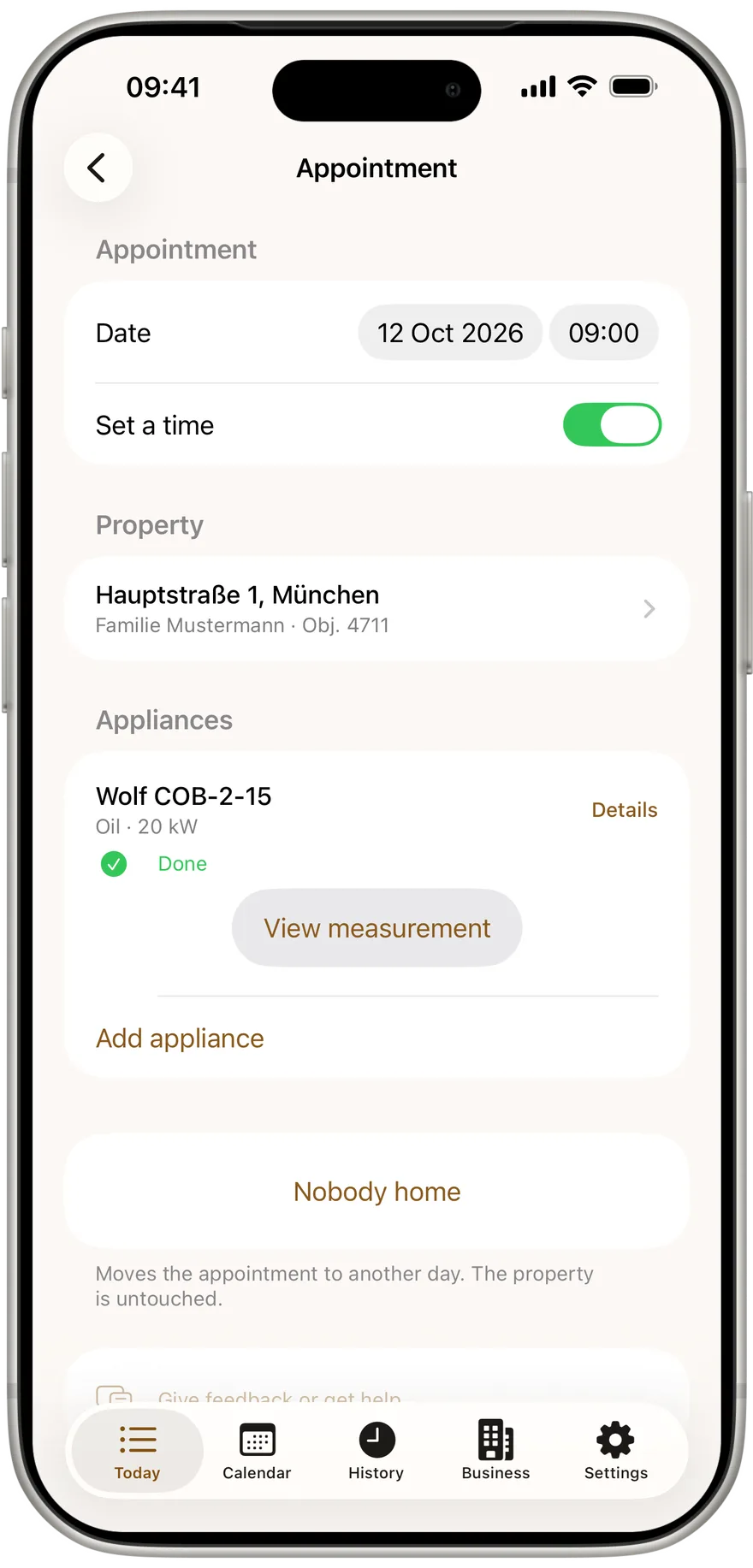
- From the office to the phone: the business's properties and appointments, with the appliances.
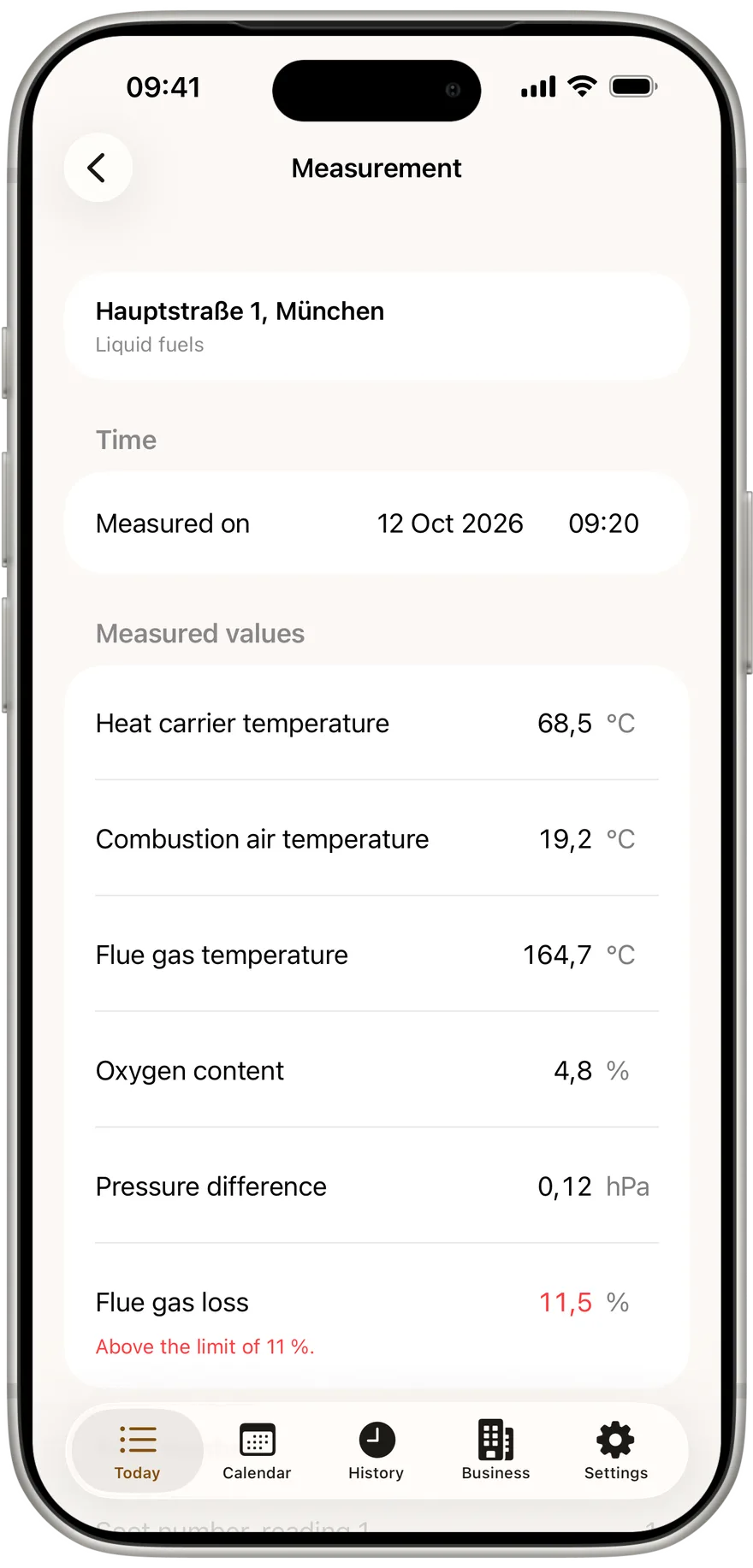
- From the phone to the office: every completed measurement on a business property, with PDF, signature and photos.
- Also to the office: an appliance you added in the cellar of a business property, so the measurement on it arrives.
- On the phone: anything you created yourself as your own property. The office never hears of it.
The direction is fixed. A completed measurement goes from phone to office, never back. Nothing on the server can overwrite or delete a measurement on your phone, the office included.
Step 4: keep an eye on the state on Today
At the top of "Today" a row shows how sending stands. "Sending…" means it is running. "All with the office" means nothing is left. A line like "3 measurements waiting" means they are saved and go out automatically. In the cellar the row reads "No signal" and says everything is saved and will be sent as soon as you have signal again.
If the office did not accept a value, the row says "Please check" with the field's name. A tap opens the measurement, you correct it and complete again. Nothing to hunt for.
Disconnect and change phones
After joining, Settings shows the business name and "Disconnect". The app asks first and says what stays: your measurements stay on this device, the business's properties and appointments stop updating, and new measurements no longer go to the office.
If a phone is lost or someone leaves, the office locks the device under Team. The phone then shows "No longer connected", and a new phone gets a new code. Whatever was on the old device stays there.
If you still work alone and a colleague joins, Settings has a "For businesses" row. From the tenth completed measurement, "Today" also shows the "Working with colleagues?" card once, with "Write to us".
Try Kehrwerk on your own first
Free for one person for good, no account, no signal needed in the cellar. Your business can test the office free for 14 days later.
What does the office cost a business?
€39 a month plus €15 per seat, net plus VAT, from two seats. 14 days free, then cancel monthly.
How long is an activation code valid?
15 minutes, and exactly once. Joining binds it to that phone.
Do I need signal to measure after joining?
No. Only joining itself needs signal. After that the app measures offline as usual and sends when there is reception.
Does the office see my own properties?
No. What you created yourself stays on your phone and is not sent.
Can the office change my measurement?
No. Completed measurements only go from phone to office. Nothing on the server can overwrite or delete a measurement on the phone.
Try Kehrwerk on your next reading.
The chimney sweep app for flue gas readings on site. Free forever for one person, no signup.