Guide: plan appointments and import addresses by CSV
Today, Calendar and History show your week at three glances. And one CSV file puts a whole district on the phone in a single step. Here is which columns the app expects.
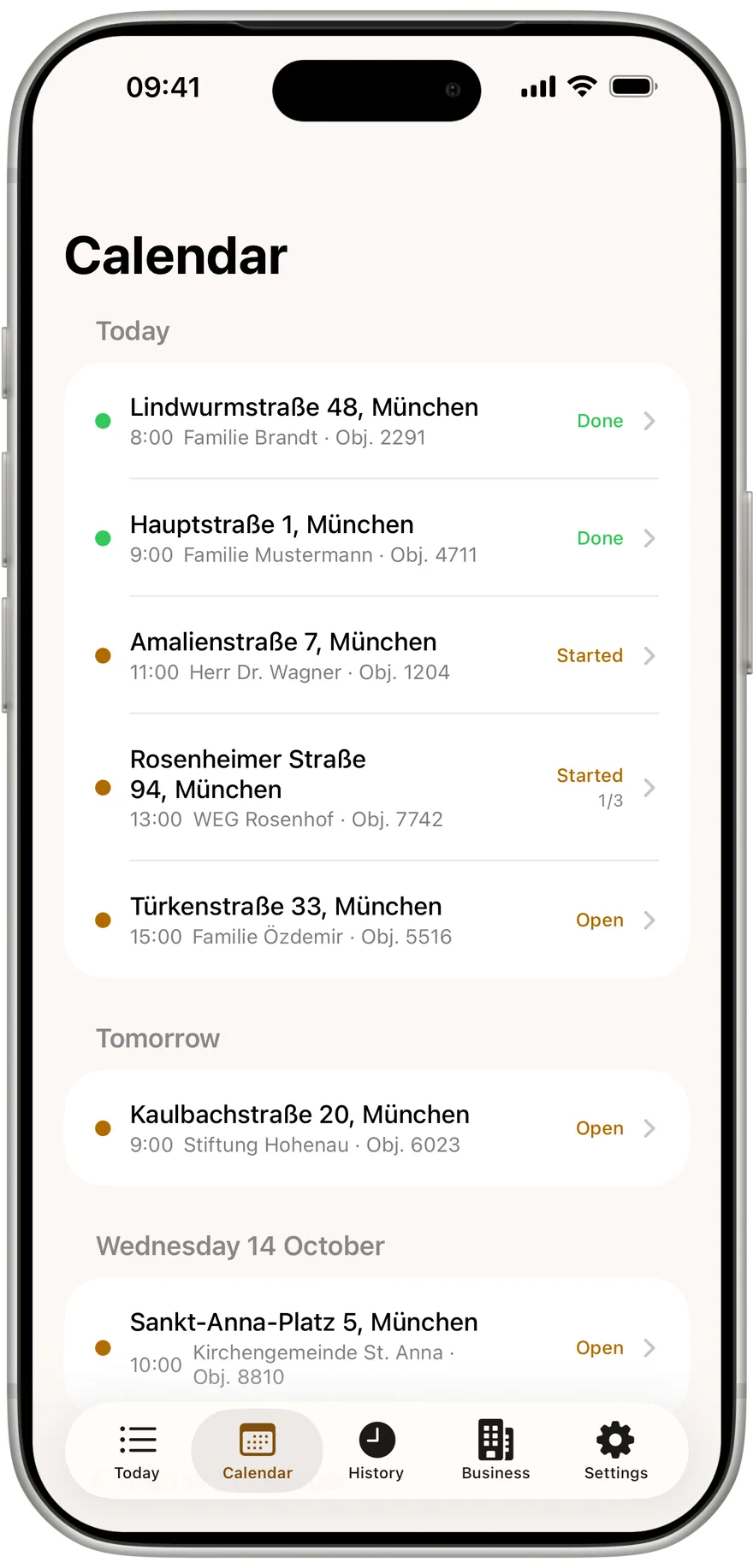
No chimney sweep types a district into a phone address by address. That is why the Kehrwerk app reads your properties, appliances and appointments from a CSV file, the kind almost every district software and spreadsheet can produce. After that you plan the day on three screens: Today, Calendar and History. This guide covers both, the import and the daily work with appointments.
Step 1: prepare the CSV file
The file has a header row and one row per appliance below it. The app shows the columns itself in the import under "Columns", in this order:
- Datum: the appointment, as 05.11.2026, 5.11.2026, 2026-11-05 or 05/11/2026
- Uhrzeit: for example 09:30, leave empty for an appointment with no fixed time
- Eigentuemer: the owner's name
- Strasse: street and number, the only required column
- PLZ and Ort: postcode and town
- Bezirk: the district number
- Objekt: the object number
- Lage: location in the building, such as cellar or attic
- Art: the appliance type as text
- Hersteller, Typ and Seriennummer: manufacturer, model and serial number
- kW: the rated heat output, a decimal comma is fine
Column names do not have to match exactly. The app recognises them by how they start, ignoring case: Straße or Strasse, Eigentümer or Eigentuemer, Leistung instead of kW, and English headers such as street, city or date. The separator is the semicolon; if the header has none, the app reads commas. Because of decimal commas like 24,5, the semicolon is the better choice. Save the file as CSV in UTF-8 so umlauts arrive intact.
For the Art column a plain word is enough. Text containing Öl, Oel, oil or flüssig becomes an oil boiler. BHKW, Wärmepumpe or Brennstoffzelle give the CHP category. Einzelraum, Ofen or Kamin become a room heater, fest, Holz or Pellet a solid fuel boiler. Everything else is gas.
Load a whole district in one step
Pick a CSV, done. The import runs on the phone, no account. Kehrwerk is free for one person for good.


Step 2: import the file
Put the file in the Files app or in Google Drive, depending on your phone. Then on "Today":
- iPhone: the plus at the top right, then "Import addresses".
- Android: the import icon in the top bar.
- Both: when the day is empty, "Import addresses" is also a large button in the middle.
Tap "Choose a CSV file" and pick the file. The app groups at once: rows with the same address become one property, rows with the same address and date one appointment. A house with a gas boiler and a wood stove is one property with two appliances and, if both rows carry the same date, a single appointment.
The screen then shows under "Imported" what arrived: properties, appointments and appliances. Rows without a street are counted as skipped. "Done" takes you back to Today. Every imported property takes your business's country, and with it the right values and limits. Addresses already on the phone are recognised by street and postcode.
If something fails, the app says why: the file is empty, no street column was found, or the file could not be read. In that last case save the spreadsheet again as CSV in UTF-8.
Step 3: work through the day on Today
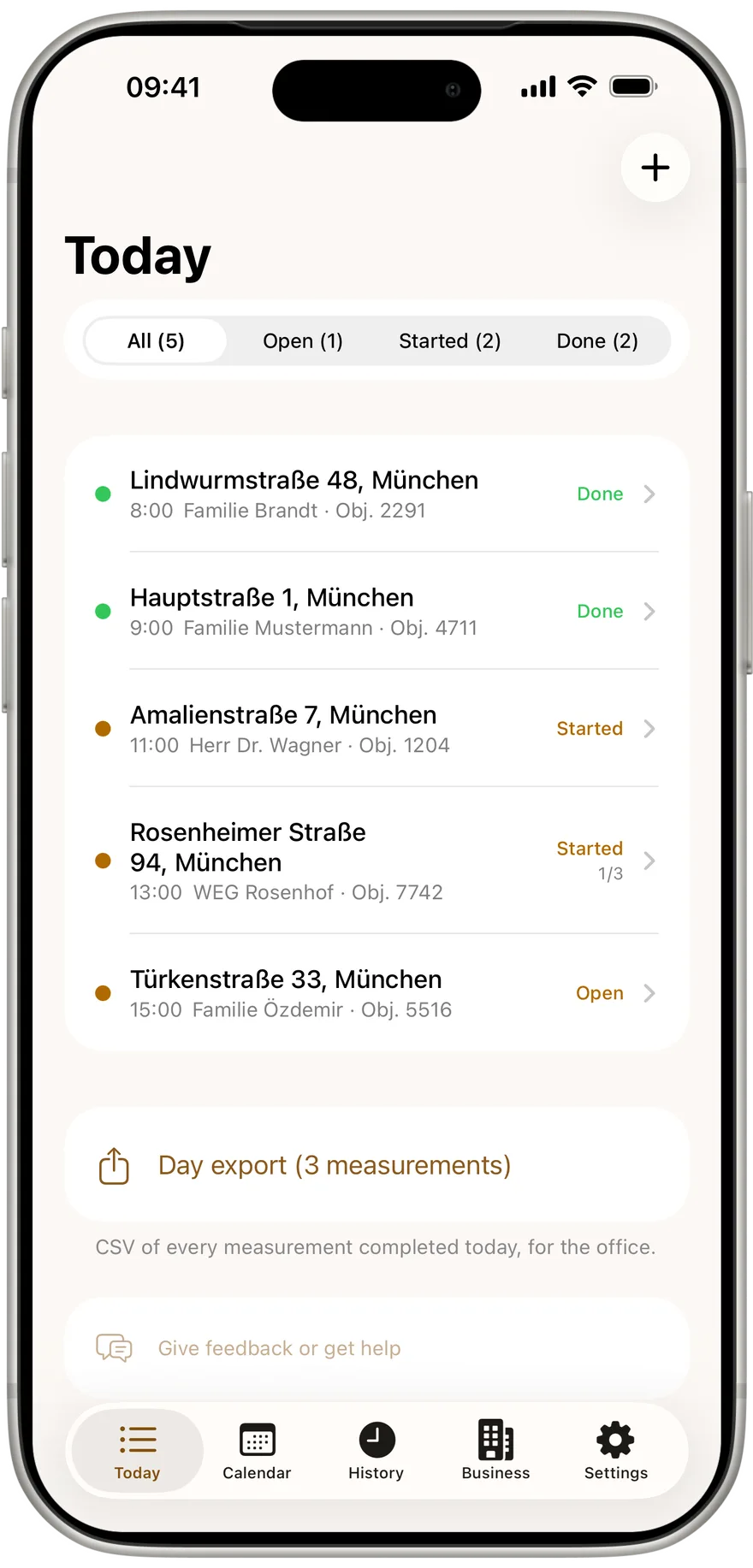
"Today" shows only today's appointments. Above the list you filter by All, Open, Started and Done, on iPhone each with its count in brackets. Every row shows address, time, state, and how many appliances are measured, for example 1/2.
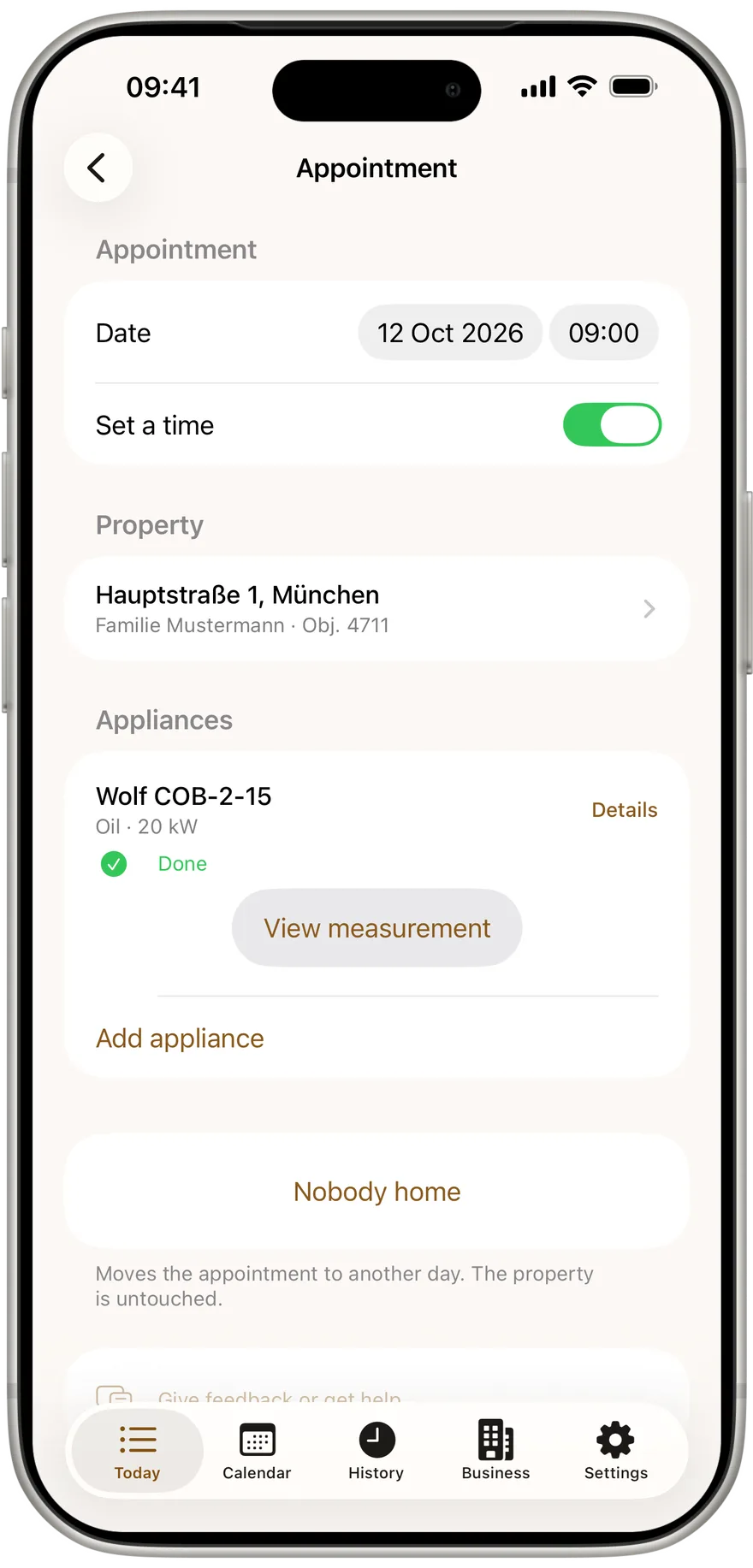
A tap opens the appointment with date, property and every appliance. Under each appliance is "Start measurement", "Resume measurement" or "View measurement", depending on how far it is. Add an extra appointment with "Add appointment".
Step 4: when nobody opens the door
The appointment has a "Nobody home" button. The app asks what should happen: "Move to tomorrow", "In a week" or "Just record it". When moving, it creates a new appointment on the new day, and today's stays in History as nobody home. The wasted trip is on record. The property itself is unchanged.
Remove a wrongly created appointment with the delete button at the bottom, or by swiping in the list on either platform; Android offers an immediate undo. That only works while no completed measurement is attached. Finished work cannot be swiped away by accident.
Your week on the phone, even with no signal
Today, Calendar and History work fully offline. Free for one person, no sign in.
Step 5: see the week in Calendar
"Calendar" shows everything still to come, grouped by day. The headings read Today and Tomorrow, then weekday and date. Appointments marked nobody home drop out here. They sit in History, and the new appointment appears on its own day. A tap opens an appointment, just like on Today.
Step 6: find past appointments in History
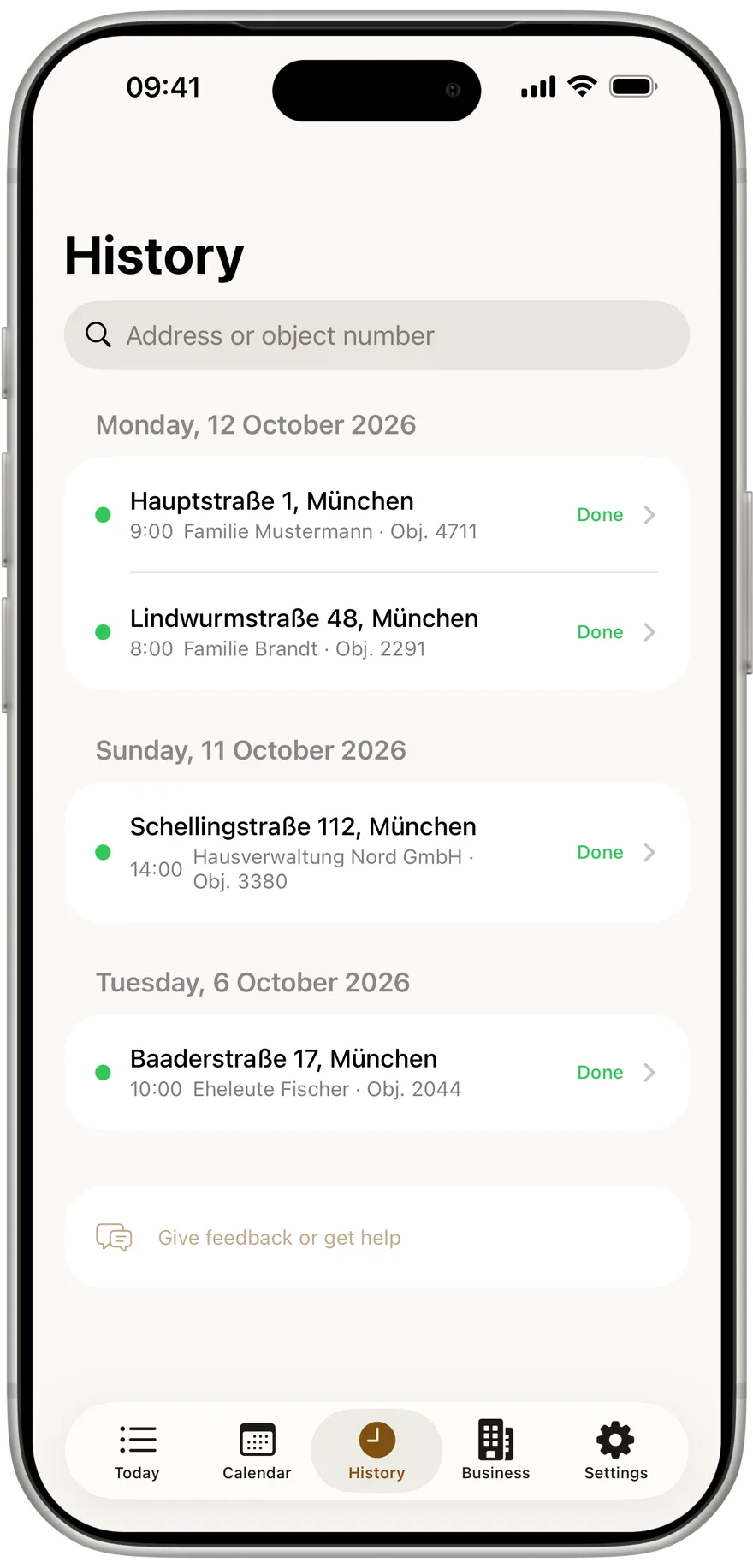
"History" shows everything done or past, newest day first. At the top is the search field "Address or object number". It searches street, town, owner, object number and postcode. When an owner calls about the protocol from spring, type the street name, open the appointment and share the PDF with "View measurement" and "Export".
If your phone works in a business with the Kehrwerk office, you do not need the CSV import: the office sends properties and appointments straight to the phone. More in the guide on joining with the activation code.
Try the import with your own list
One CSV from your district software is enough. No account, no server, free for one person for good.
Which column must the CSV have at minimum?
Only the street. Everything else is optional. Without a date you get a property with appliances but no appointment.
Comma or semicolon?
Both work. The app uses the semicolon as soon as the header contains one. For numbers with a decimal comma, the semicolon is the safe choice.
How do I import several appliances in one house?
One row per appliance with the same address. The app groups them into one property, and with the same date into one appointment.
What happens when nobody is home?
Tap "Nobody home" and move it to tomorrow or a week later. The wasted trip stays recorded in History.
How do I find an old protocol?
Search History by street, town, owner, postcode or object number, open the appointment, "View measurement".
Try Kehrwerk on your next reading.
The chimney sweep app for flue gas readings on site. Free forever for one person, no signup.